Tested with: KSA Version 2026.10.19.5638
¶ Adding GUIs to KSA
The Namespace Brutal.ImGuiApi is Brutal's implementation of an Immediate-mode Graphical user interface (ImGui).
An Immediate-mode Graphical user interface is characterized as a Graphical User Interface "in which user code directly specifies the GUI elements to draw in the user input loop. For example, rather than having a CreateButton() function that a user would call once to instantiate a button, an immediate-mode GUI API may have a DoButton() function which should be called whenever the button should be on screen." (Wikipedia, 'Immediate Mode (computer graphics), 11/20/2025) [1]
This current page will go over the very basics of creating a Brutal ImGui Window. The other GUI elements will have their respective pages which you can find in the section viewer.
This documentation page is not finished yet. Some sections or method pages may be missing, incomplete, or incorrect.
¶ Creating Your First Window
¶ Prerequisites
All of the ImGui elements must be drawn to the screen every frame and as such, their code should be executed every frame. It is recommened to put the code in a function that is called every frame.
As well as KSA.dll, your project needs a reference to Brutal.ImGui.Abstractions.dll from the game folder. That is the assembly holding the ImGui class and ImGuiWindowFlags.
For StarMap an example setup for the ImGui would be,
using Brutal.ImGuiApi;
using StarMap.API;

[StarMapMod]
public class ImGuiExample
{
    [StarMapAfterGui]
    public void AfterGUI(double dt)
    {
        // ImGui code or function calls go here
    }
}
To learn more about how StarMap handles drawing GUI, check out the StarMap GitHub page or join the KSA Discord to ask questions.
¶ Methods
bool ImGui.Begin(string id, [ImGuiWindowFlags flags = ImGuiWindowFlags.None])void ImGui.End()bool ImGui.Begin(string id, ref bool pOpen, [ImGuiWindowFlags flags = ImGuiWindowFlags.None])
¶ My First Window
The simplest and most important part of an ImGui application is the window. This is what all of your elements will show up in. To start, every window requires an ImGui.Begin() and ImGui.End() method to be called. If either of these are not called you will get a RunTime error.
To create a window all you need to do is add this small piece of code.
if(ImGui.Begin("My First Window")) {}
ImGui.End();
Advanced Explanation: We put the
ImGui.Begin()inside an if-statement because the method returnstrueif successfully drawn to the screen, and we only want to add any element inside the if-statement only if the window was successfully drawn. TheImGui.End()is outside the if-statement as we always want to end the window at somepoint in our code.
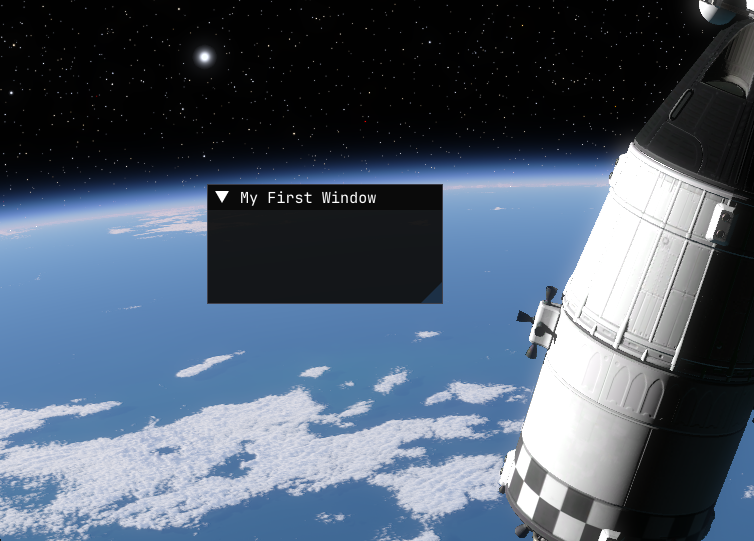
This will create a Empty Window with the title My First Window.
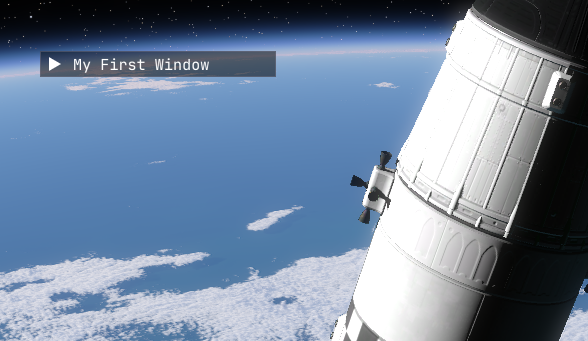
Which can also be collapsed,
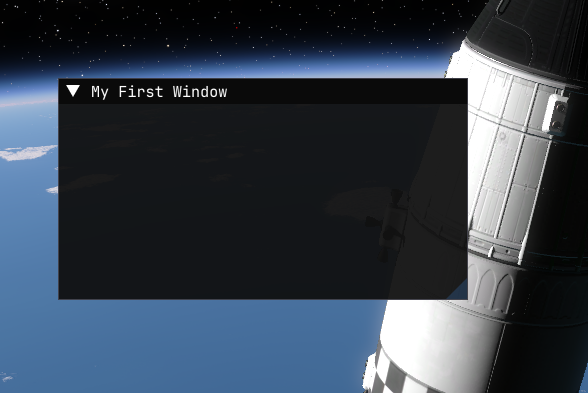
This window is also resizable in both the horizontal and vertical,
¶ Closeable Window
One thing to notice is that My First Window is not fully closeable, it can be collapsed but not closed. To change this, we can add a boolean reference to our ImGui.Begin().
private bool showWindow = true;

[StarMapAfterGui]
public void AfterGUI(double dt)
{
    if(!showWindow) return;

    if(ImGui.Begin("My First Window", ref showWindow)) {}
    ImGui.End();
}
The reason that the
bool showWindowis outside theAfterGui()is that we want the boolean for showing the window to not get reset every frame, we want to preserve it in-between frames.
The
if(!showWindow) return;line is required to hide the window, because the window will be drawn every frame if its code is executed, even if the boolean reference is false.
And the window will now look like this.
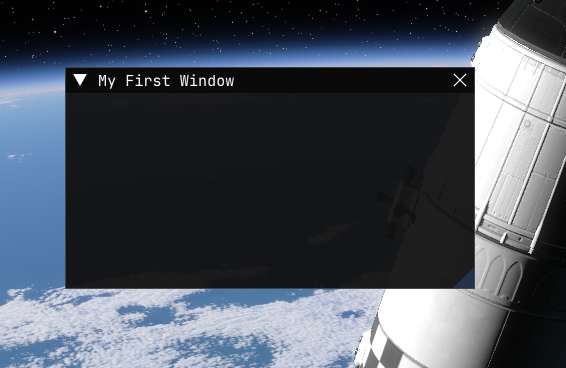
You can now see that there is an X button at the top right of the window and when pressed the window is fully closed.
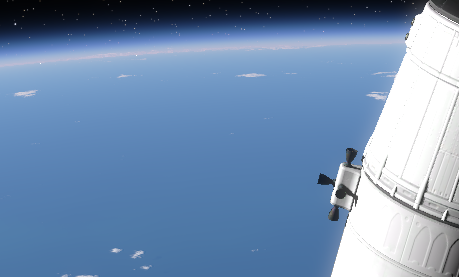
Not very much to see there now.
You must add a way to change the
showWindowvalue if you want the window to reopen. More will be added later for this.
¶ Customizing the Window
To further customize your ImGui window, you can use ImGuiWindowFlags. These are ways to specify what you want your window to be or how to behave. If you want all the information on each of the flags, visit the ImGuiWindowFlags page.
As of 11/20/2025, the time this page was created, the
ImGuiWindowFlagspage does not exist. Sorry about that.
By default, the ImGui.Begin() method has a ImGuiWindowFlags flag value of None.
Reminder of the Constructors
bool ImGui.Begin(string id, [ImGuiWindowFlags flags = ImGuiWindowFlags.None])
bool ImGui.Begin(string id, ref bool pOpen, [ImGuiWindowFlags flags = ImGuiWindowFlags.None])
This flag value just specifies that we don't want any special characteristics for our window. We have already been using this value by default for our window.
We will now use two new flag values, NoResize and NoTitleBar. These flags can be created and put into the ImGui.Begin() as such.
private bool showWindow = true;

[StarMapAfterGui]
public void AfterGUI(double dt)
{
    if(!showWindow) return;

    ImGuiWindowFlags flags = ImGuiWindowFlags.NoResize | ImGuiWindowFlags.NoTitleBar;
    if(ImGui.Begin("My First Window", ref showWindow, flags)) {}
    ImGui.End();
}
The reason we can use
ImGuiWindowFlags.NoResize | ImGuiWindowFlags.NoTitleBarin setting our flags is because each flag corresponds to a bit in an integer, thus acting as a boolean. When a bitwise OR operation|is performed on them, it just adds all the active bits to the final value, thus telling the method which flags are true.
The window should now have no title and not be resizable.
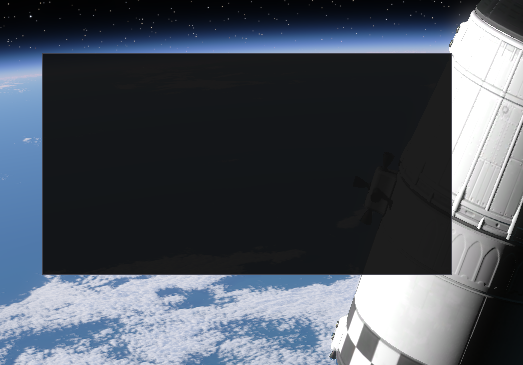
You can tell the window is not resizable as it does not have the small blue triangle in the bottom right corner of the window.
As a result of not having a title bar the window is no longer collapsible through the drop-down arrow, nor is it closeable using the X button.
¶ Common Errors
Below are some common errors that you may experience when creating a window.
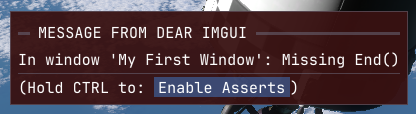
This error appears when you are missing
ImGui.End()in your code or it is in an unreachable state. One common mistake is putting theImGui.End()inside the if-statement that yourImGui.Begin()is the conditional for. Another common mistake is not having enoughImGui.End()statements as each uniqueBegin()statement must match up with one uniqueEnd()statement.
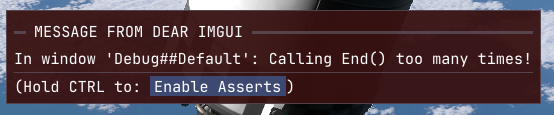
This error appears when you are missing
ImGui.Begin()in your code or it is in an unreachable state. One common mistake is having too manyImGui.End()statements as each uniqueBegin()statement must match up with one uniqueEnd()statement.
¶ Conclusion
Now that you know how to make your first window, you can explore the other ImGui pages to see how you can add to your window.
If you want to learn more and practice with ImGui while you wait for the Brutal.ImGuiApi pages to be created, the link below will take you to an example project that shows the code it runs as you explore the example.
¶ Contributors
Contributor(s):
- MrJeranimo: 11/20/2025, Created the original
ImGuiApipage.