Tested with: KSA Version 2026.10.19.5638
¶ Getting started with writing Code for KSA
Unofficial project
There is currently no official way to add custom code to Kitten Space Agency. The tools used in this guide are developed by the community. They are not affiliated with or endorsed by the KSA developers.
¶ Overview
This guide explains how to add custom code execution to Kitten Space Agency.
¶ Prerequisites
To develop mods using visual studio you need the following prerequisites
- Any Visual Studio version with c# .NET 10 development tools installed. A fresh install of Visual Studio 2026 includes .NET 10 by default. Visual Studio Community edition is free.
¶ Step 1: Setting up the development environment
Currently the most popular way to create mods is by using StarMap.
Before starting this guide it is recommended to set up the example mod and running it to verify StarMap is working. You can find a guide here and an example mod here
This guide is written against StarMap 0.4.6. Check the releases page for the current version.
¶ Creating the Visual Studio project
-
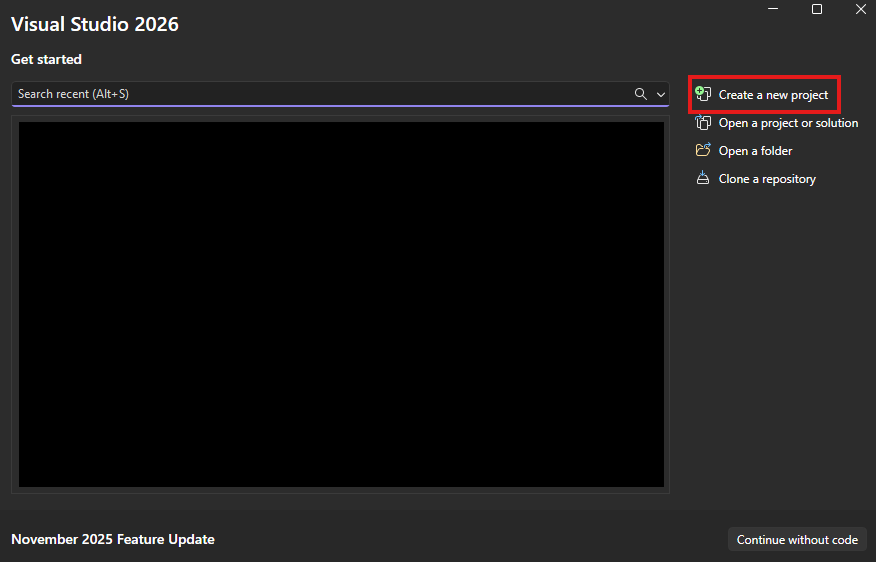
Create a new visual studio project by pressing
Create a new project. This name is going to be your mod name and needs to match your mods class, dll and mod folder.
-
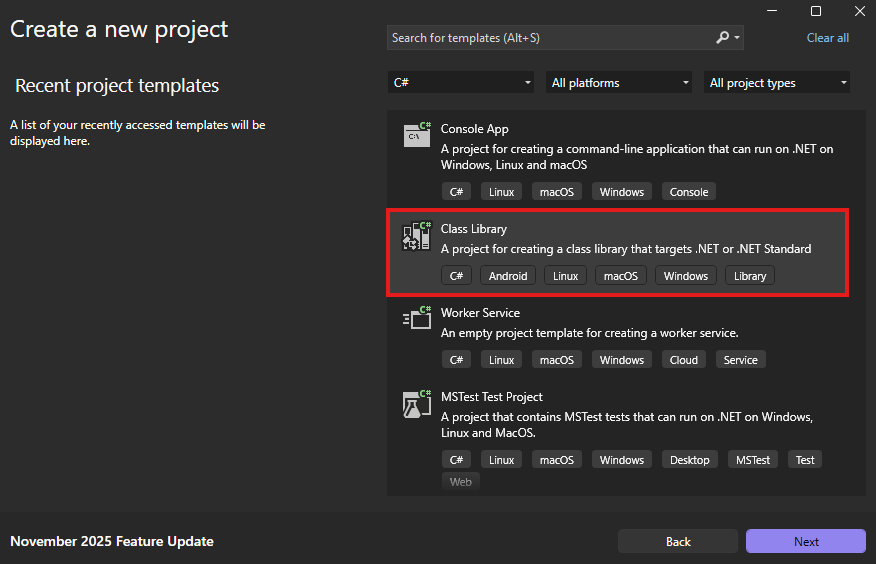
Filter for the C# language
-
Select
Class Library -
Click next
-
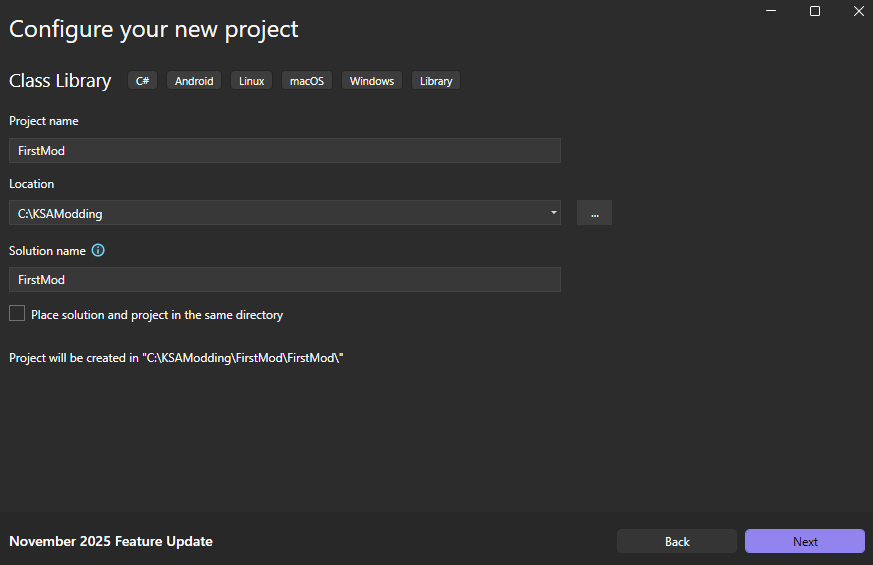
Enter
FirstModas the name of the project -
Select a location
-
Press next
-
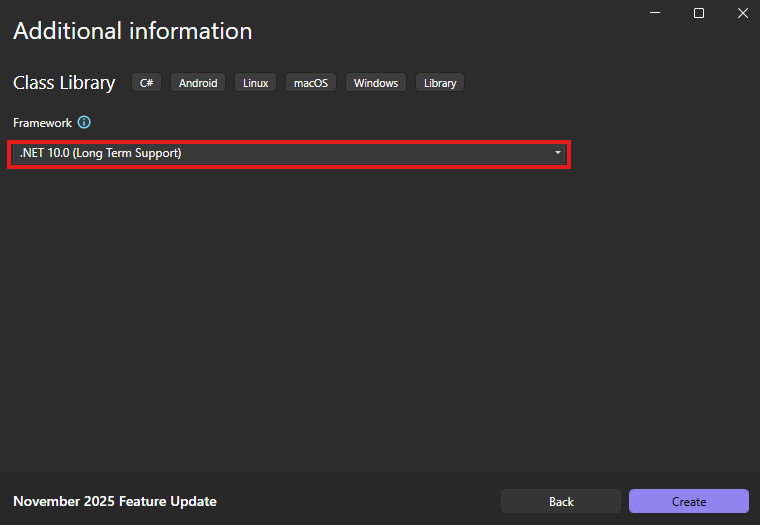
Select .NET version 10 (Long Term Support)
-
Press create
¶ Setting up StarMap
Now that we have a working Visual Studio project it is time to setup StarMap.
We will have to add the StarMap.API nuget package
-
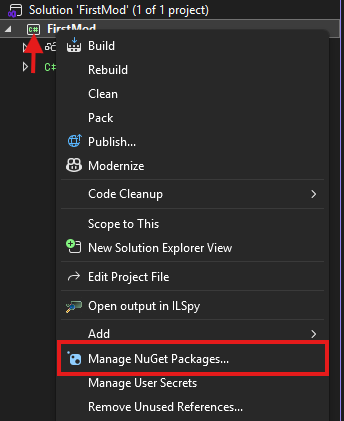
Right click the project
-
Select
Manage NuGet Packages
-
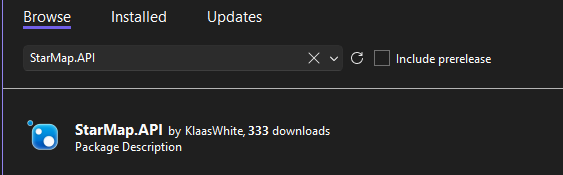
Search for
StarMap.APIin the browser tab
-
Select
StarMap.API -
Install the latest stable version

-
StarMap should be set up
¶ Setting up Harmony
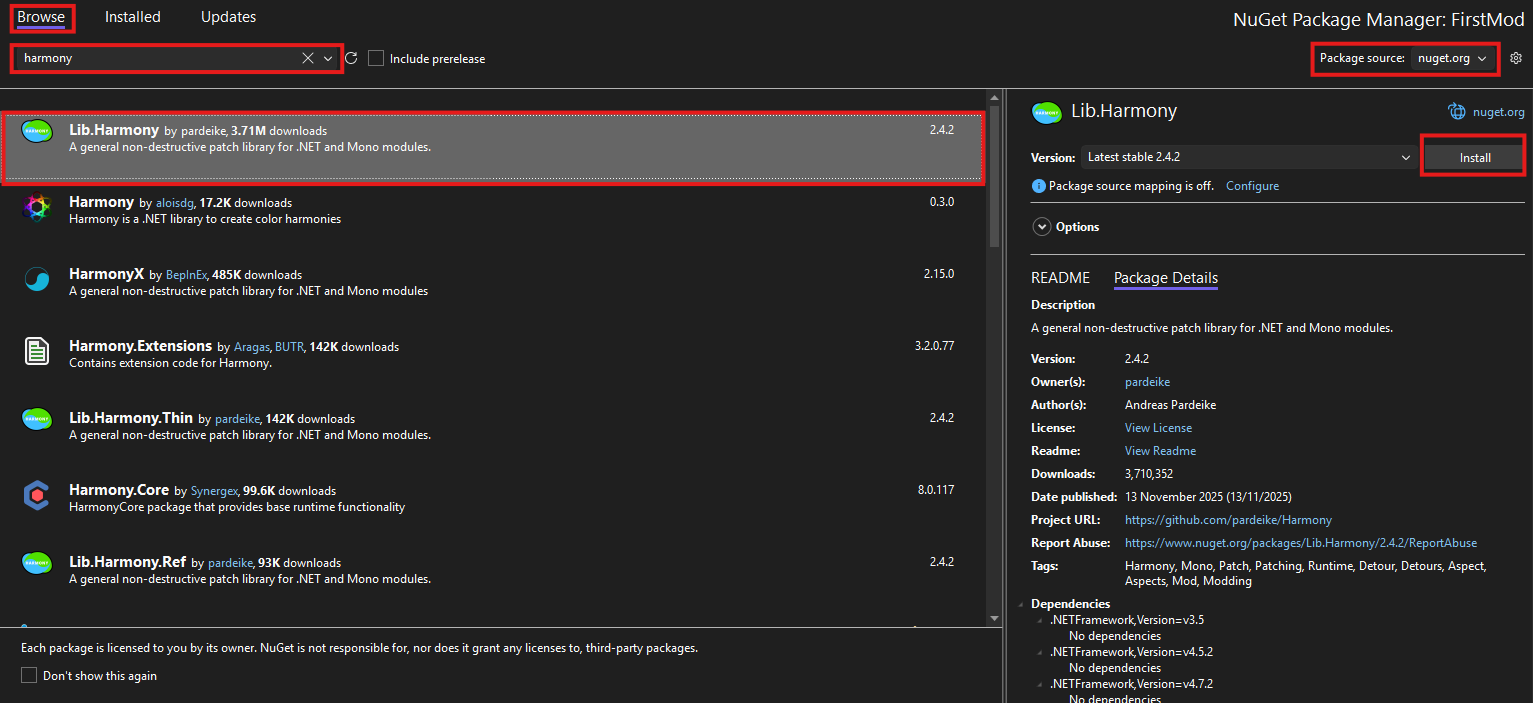
Follow the same steps when setting up StarMap.API but instead of searching for StarMap.API you search for Lib.Harmony
¶ Step 2: Adding dependencies
When using StarMap to mod the game you will eventually need external resources from the game itself called assemblies or .dll files. For a basic mod you only need one dependency: KSA.dll. So this first-steps guide will do just that.
-
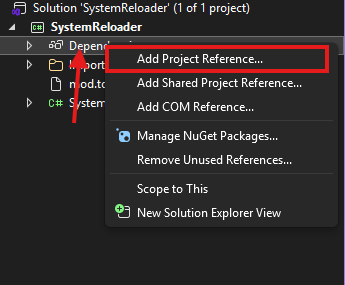
Right click on dependencies
-
Press Add Project Reference
-
Press Browse
-
Now go to your KSA install directory and find KSA.dll, select it and click add. The install path depends on where the game was installed, see Directories and Files.
-
Press OK
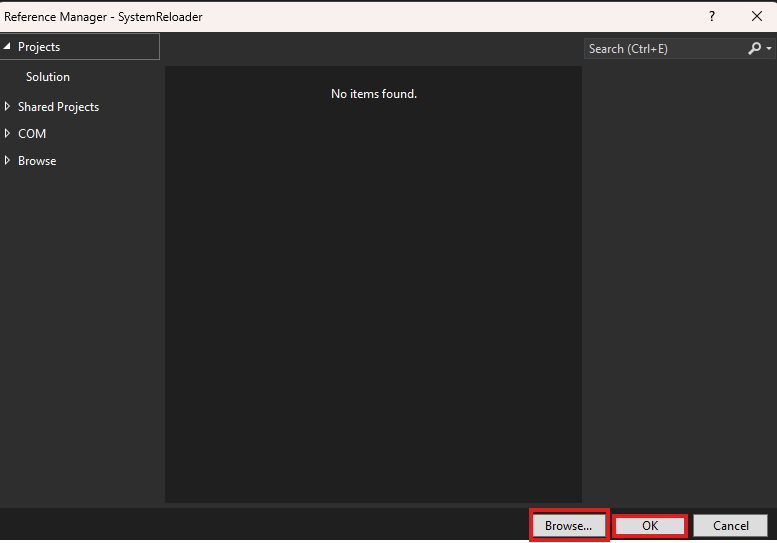
Another thing you have to do is configure Visual Studio's project file to work corrctly.
- Find the .csproj file of your project. On Windows, it is usually in C:\Users[username]\source\repos\FirstMod\FirstMod. (if you followed the guide and named your project FirstMod).
- Open it in a text editor. (on Windows 11 you can also just press Edit in Notepad)
- Inside the
<Reference>tag, change or add<Private>false</Private>. This will avoid exporting every dependency DLL when building the mod. - Also change or add the tag
<PlatformTarget>x64</PlatformTarget>. This will avoid the warning MSB3270 when Visual Studio doesn't export the mod for the right CPU.
¶ Step 3: Creating a Mod class
StarMap automatically loads the class with the same name as the .dll file and that has the [StarMapMod] attribute
Our first step will be creating this class. Our example will be using the name FirstMod for the mod.
¶ Creating the class
Create a class under the namespace FirstMod with the name FirstMod. And let it inherit from IStarMapMod by putting the [StarMapMod] attribute one line before the class.
using StarMap.API;

namespace FirstMod
{
    [StarMapMod]
    public class FirstMod
    {

    }
}
The api exposes a couple of attributes but for this simple hello world example we only need one:
[StarMapImmediateLoad]. The function marked with this attribute will be run when the mod is loaded. The function this attribute is assigned to does need to take in Mod definingMod as a parameter.
The Mod class needs the KSA namespace (found in KSA.dll) so we will add using KSA on the top of the file.
using StarMap.API;
using KSA;

namespace FirstMod
{
    [StarMapMod]
    public class FirstMod
    {
        [StarMapImmediateLoad]
        public void Init(Mod definingMod)
        {

        }
    }
}
Lets make a simple hello world program now.
Just add a Console.WriteLine("Hello World!")
Inside FirstMod:
[StarMapImmediateLoad]
public void Init(Mod definingMod)
{
    Console.WriteLine("Hello World!");
}
¶ Step 4: Creating mod.toml
A mod should always have a mod.toml file so it can be identified by StarMap. Lets Create that file.
- Create a new file in Visual Studio and call it
mod.toml. - Edit the file and add this inside, name should always be the name of both the dll and the class that implements IStarMapMod.
name = "FirstMod"
That is the only key a code-only mod needs. See The mod.toml file for the rest.
- Now right click on mod.toml and select
Properties. - Under properties there is a field called
Copy To Output Directoryset it toCopy always.
¶ Step 5: Compiling
If you did all steps correctly simply right clicking the project and selecting Build should build the files.
The compiled files will now be in the following directory: projectdir\FirstMod\bin\Debug\net10.0.
Now follow the installation guide to test your brand new mod. If you did all the steps correctly you should see Hello World! in the console output of StarMap.exe.